Presenting Graphs with the Slow Reveal

Over here I talked about how important it is that we gradually introduce components of complex graphics – one-at-a-time – so as not to overwhelm the visual field and working memory of our audience members. We don’t want to slam our content in their faces all at once. It let’s the audience read ahead and only half-listen. It can also be so much information at one time that audience members check out entirely.

Here’s how to use the same Slow Reveal technique on graphs, which I learned from the smart folks over at BrightCarbon.

First, insert your graph into PowerPoint.

Screenshot of graph inserted into PowerPoint

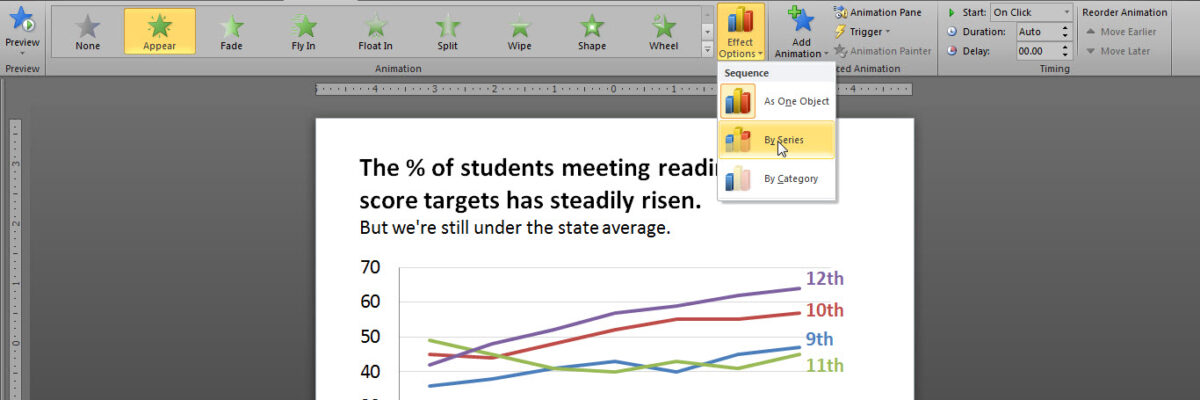
Then, with the graph actively selected, click in the Animation tab. Select a very low-distraction animation effect. Pretty much, this is limited to Appear. So select Appear. Because the graph is active, when you select appear, you’ll also get a button called Effect Options with a picture of a column graph on it. Click the arrow to see the menu options. In the case of a line graph, you’ll want to select By Series.

Screenshot of adding animation to graph in PowerPoint

When you run the slide, it will begin with the title, axis, and gridlines. Just the skeleton of the graph.

Slide with animated graph start with axis and gridlines


As you click through the animation, each data line appears one at a time.
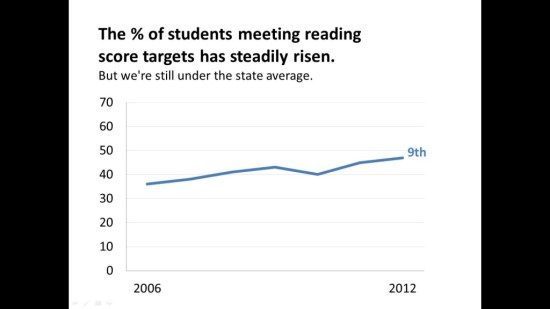
Animated chart reveals one data line at a time.

This way, you have the opportunity to walk your audience through each piece of the data, isolating their attention to that one point. It allows you to make more controlled comparisons, say, between 10th and 11th graders. It also allows you to equally emphasize each data line, as opposed to other methods I’ve shared where the lines are set in grayscale + an action color, which only emphasizes one data line.

Now generally I argue against animation because it acts funky or disappears in many webinar platforms – so use it cautiously and always test your slideshow on the computer you’ll be using for the live presentation.

Come join my online workshops. We’re talking about these same ideas as they relate to research & evaluation reports, slideshows, and graphs. In March you can even bring your own particular problem for small group discussion.


Tagged with: , , , ,
Posted in charts, Communicating Findings, slideshows
5 comments on “Presenting Graphs with the Slow Reveal
  1. Angie Ficek says:

    i had no idea that ppt animation had the capability of doing this. yet another informative post – thanks Stephanie!

    • Stephanie Evergreen says:

      Neither did I! I love discovering new things, even if it makes me feel like I’ve been completely unobservant. I’m sure there will be even more surprises in Office 2013.

  2. Megan Walker Grimaldi says:

    Thanks Stephanie! I had been wondering if I could do this. I just added it to a presentation of mine.

  3. Jeff Wasbes says:

    This is a really smart way to keep your audience engaged and focused on the message. I have used this technique graphic unfolding technique before and it works fine. But you must be wary about how your animations might get distorted if you develop your slides in one version of PowerPoint and have to present in another. An alternative might be to build out the graph in a similar manner in Excel and copy each image of the transitioning graph to its own slide in PowerPoint. Using a separate slide for each phase of the slow reveal will ensure that version differences don’t cause any weird distortions.

    • Stephanie Evergreen says:

      Right! That was I explained in the original Slow Reveal blog post that I linked to and referenced here. Aside from issues in different versions of PowerPoint, animation can get wonky in some webinar platforms. Best to use separate slides unless you are certain about the platform you’ll be on (i.e., your own laptop, plugged into a projector).

Leave a Reply

Your email address will not be published. Required fields are marked *

*

You may use these HTML tags and attributes: <a href="" title=""> <abbr title=""> <acronym title=""> <b> <blockquote cite=""> <cite> <code> <del datetime=""> <em> <i> <q cite=""> <strike> <strong>

Give me your email address (I'll protect it, I promise) and I'll send you the latest updates by email.

Evergreen Evaluation
Looking for Stephanie’s program evaluation services? Visit the sister company, Evergreen Evaluation
We Tweet!